The menu items described below are only accessible if you have administrative rights. Depending on your rights, you might see all or only some of these items.
Users
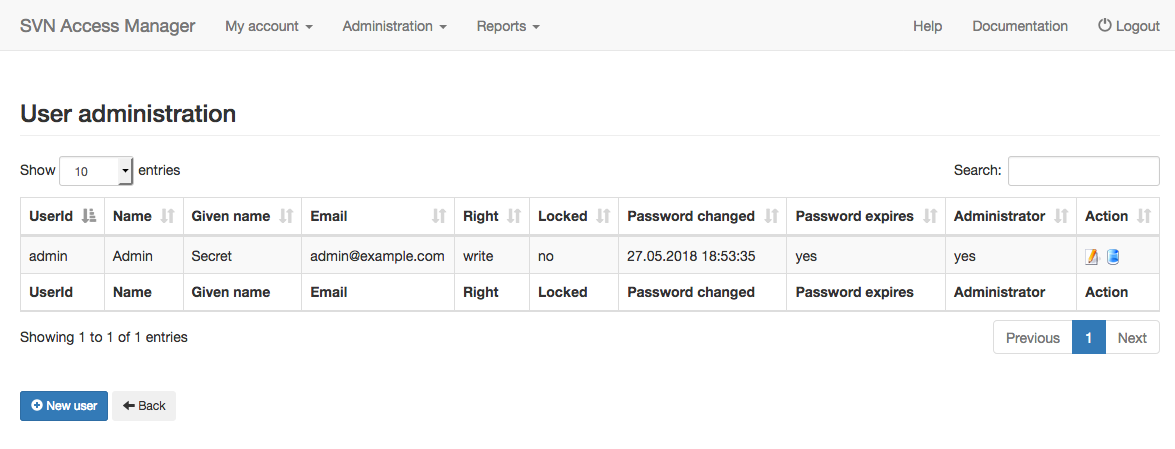
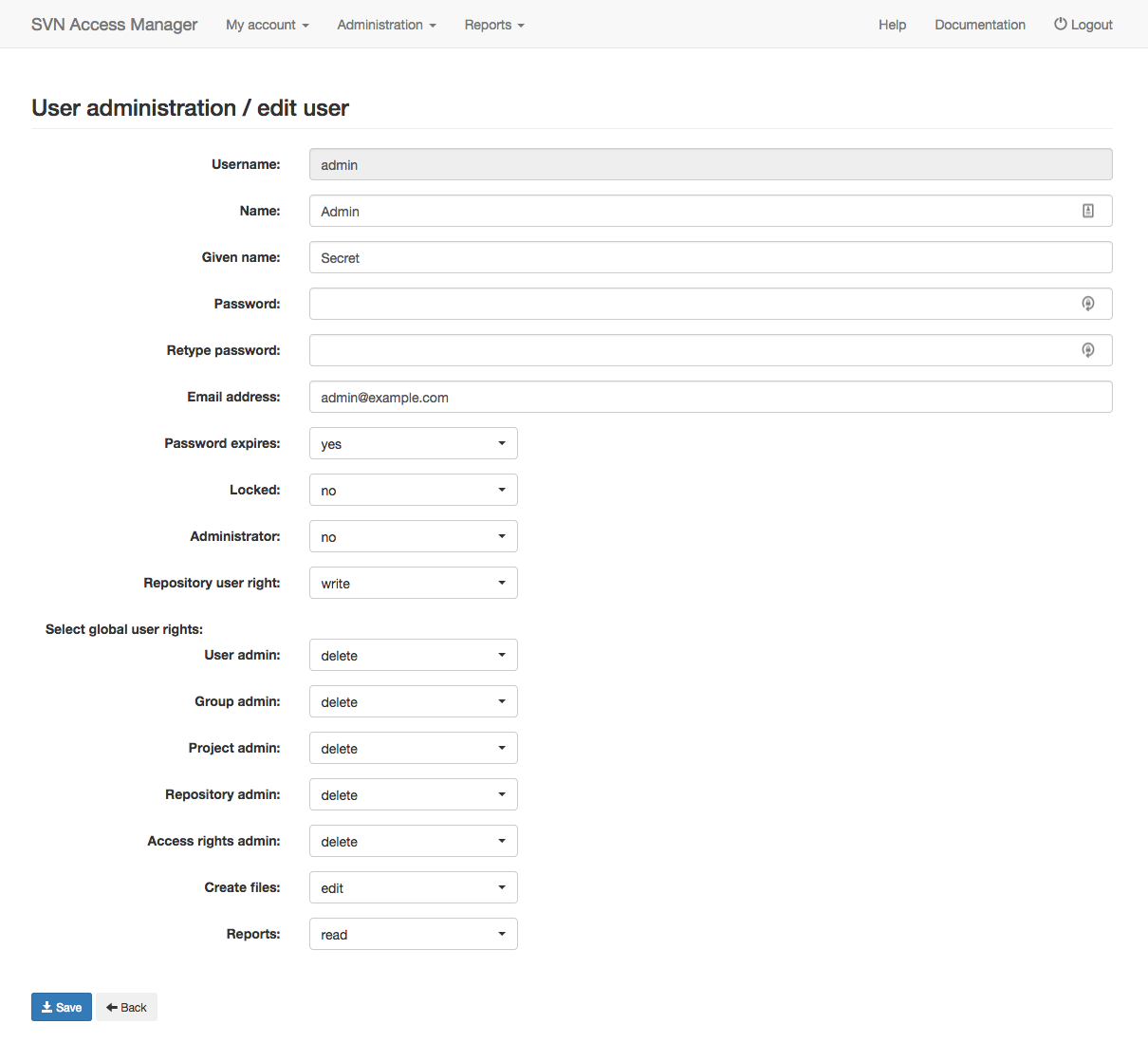
Select a user by clicking the edit icon, delete a user via the delete icon, or add a new one. A user needs a name, given name, a unique username and a password — administrators need a stronger password than regular users. Passwords normally expire after 90 days; this can be disabled per user.
The repository user right determines whether a user can be granted write access to repositories at all: if set to read, that user can never get write access to any repository in the defined projects. The global user rights determine what the user may do within SVN Access Manager: none, read, edit or delete — higher rights include the lower ones.
With subadministration rights you cannot edit every field of a user, and you can never grant permissions higher than your own. If you can edit your own user, be careful lowering your own rights — you will need a more privileged administrator to give them back.
Groups
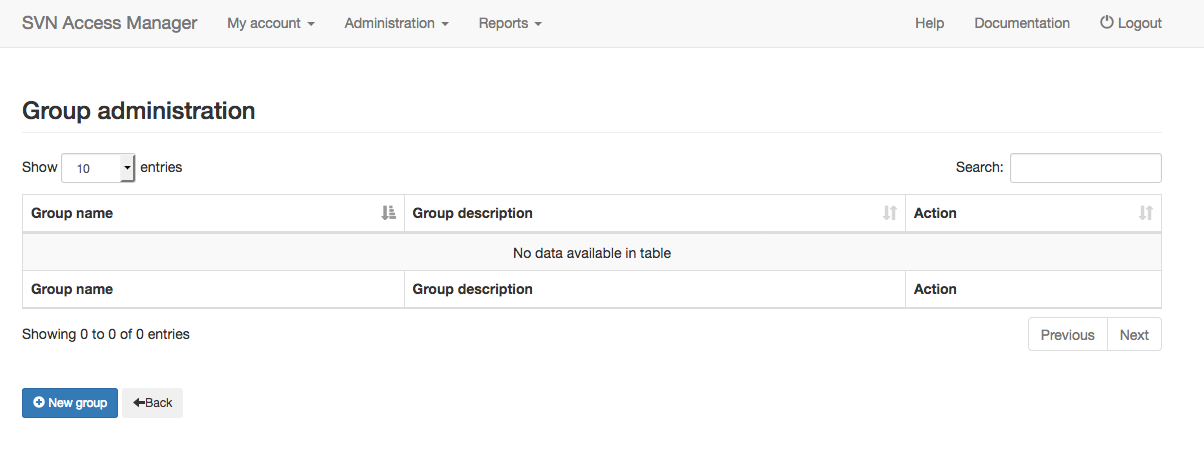
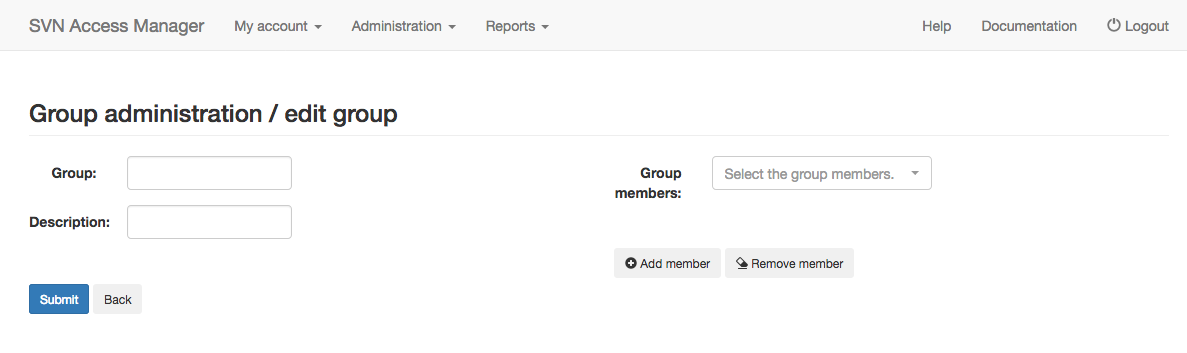
Groups make access-right administration easier: assign rights to a whole group, and adding a member gives them every right the group has. Each group needs a unique name and a description. Add members via the green plus icon below Group members, select the users you want, and confirm with the green checkmark.
Repositories
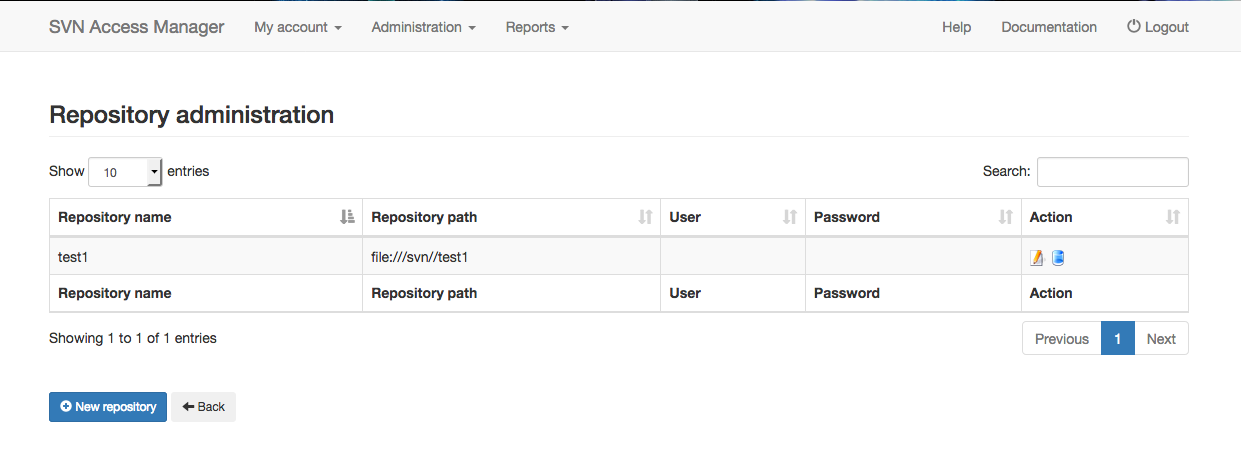
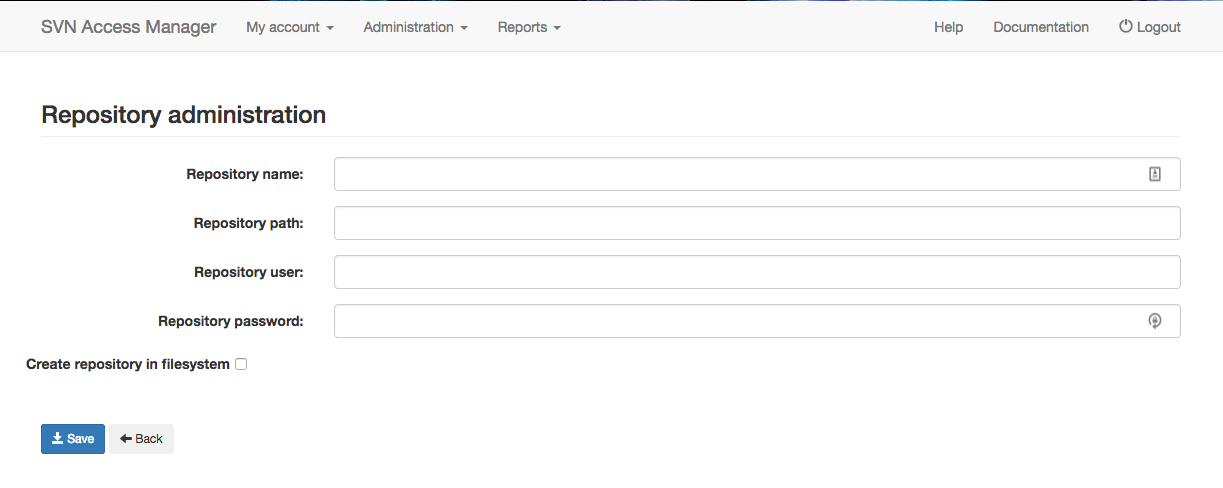
Define the repositories you want to administer here. Removing a repository only removes it from
the database. Each repository needs a unique name, a repository path, and — if accessed via
DAV — a username and password. The path must start with file:// if SVN Access
Manager runs on the same machine as the repository. If it does, SVN Access Manager can also create an
empty repository for you.
Projects
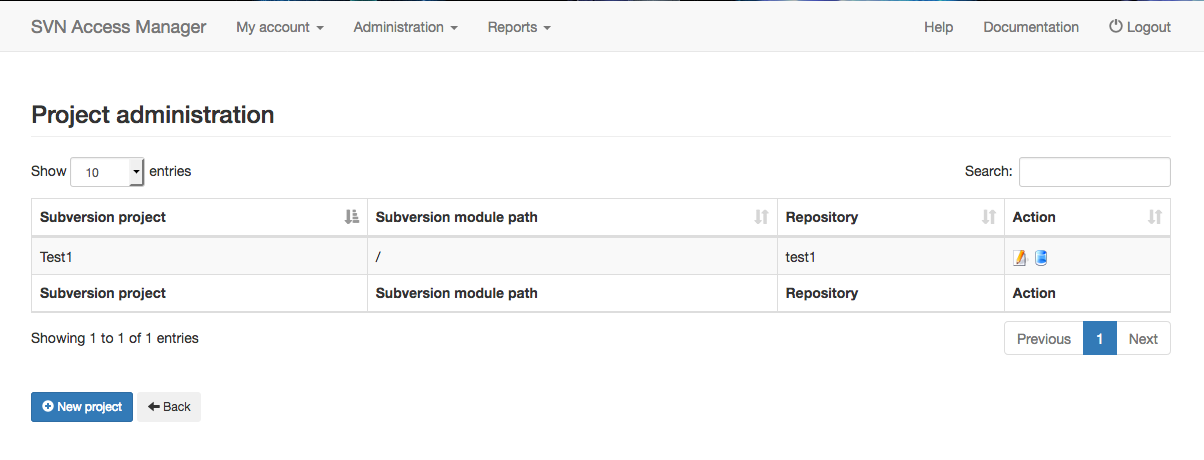
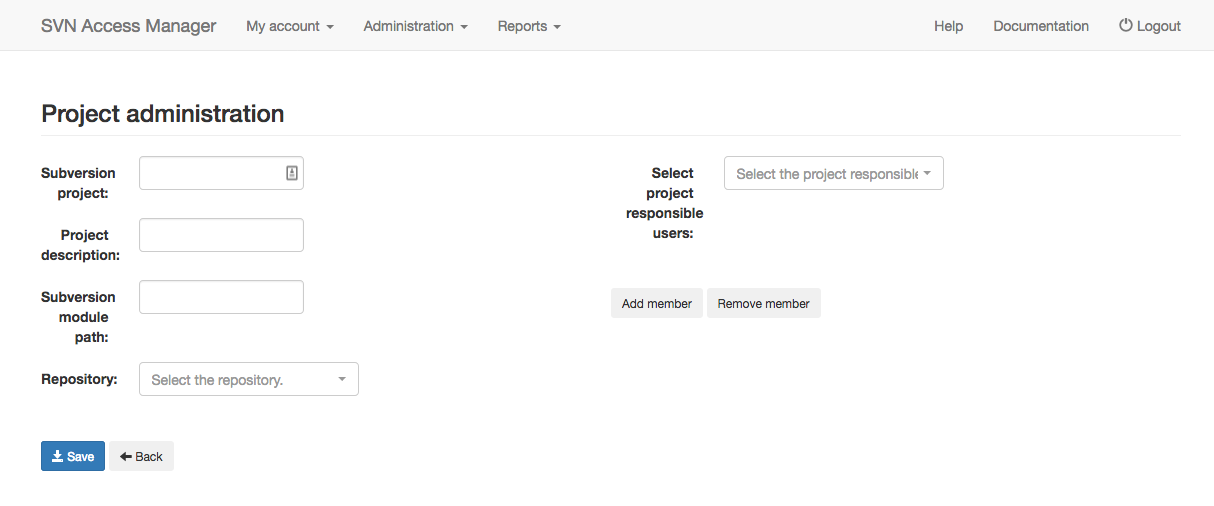
Each project needs a unique name. The Subversion module path limits access to the directory
specified here and its subdirectories — use / for the top-level directory. A
project is valid for exactly one repository, chosen from the drop-down. Add responsible users via the
green plus icon; a project needs at least one, or no one will be able to administer it.
Repository access rights
Subversion grants access rights recursively, so defining rights for a repository is simpler than
it looks. Take a repository testrepo with a trunk directory and five
subdirectories:
Repository testrepo:

trunk
     /dir1
     /dir2
          /dir3
          /dir4
     /dir5
Assume two users, A and B. User A should read the whole repository but only write into
dir2 — without its subdirectories. User B should write everywhere except
dir5, where they should have no access at all. The resulting access file:
[testrepo:/trunk/]
A = r
B = rw

[testrepo:/trunk/dir2]
A = rw

[testrepo:/trunk/dir2/dir3]
A =

[testrepo:/trunk/dir2/dir4]
A =

[testrepo:/trunk/dir5]
B =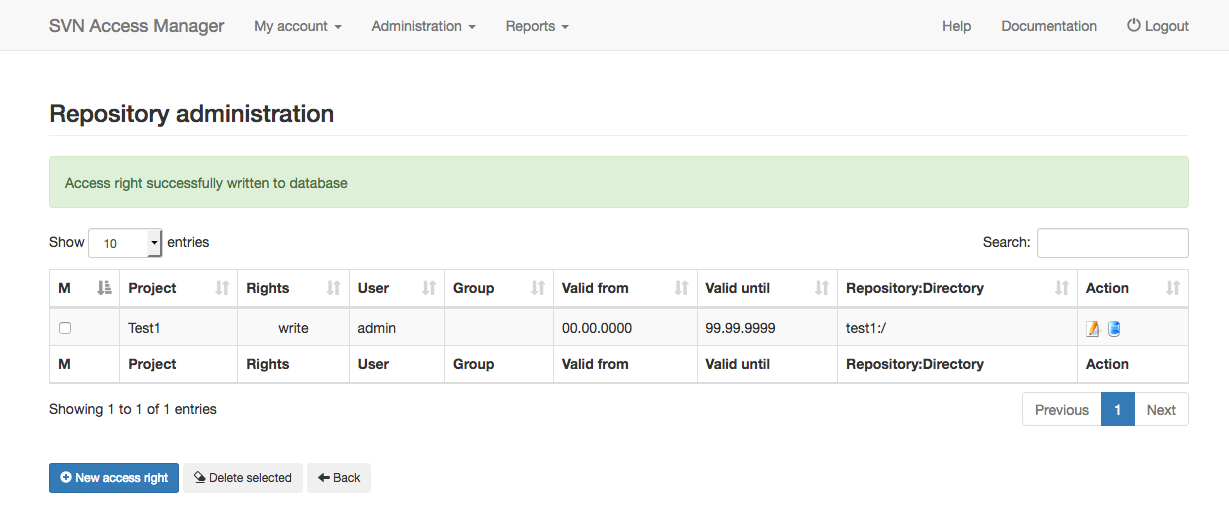
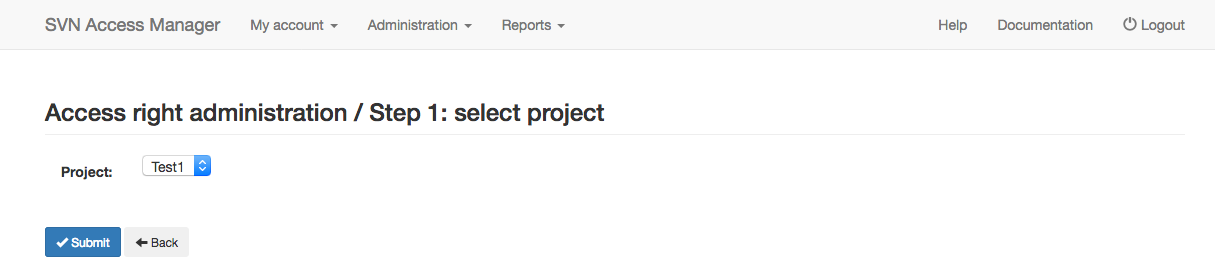
Select, edit or delete an access right from the overview, or add a new one. First choose the project you want to work with:
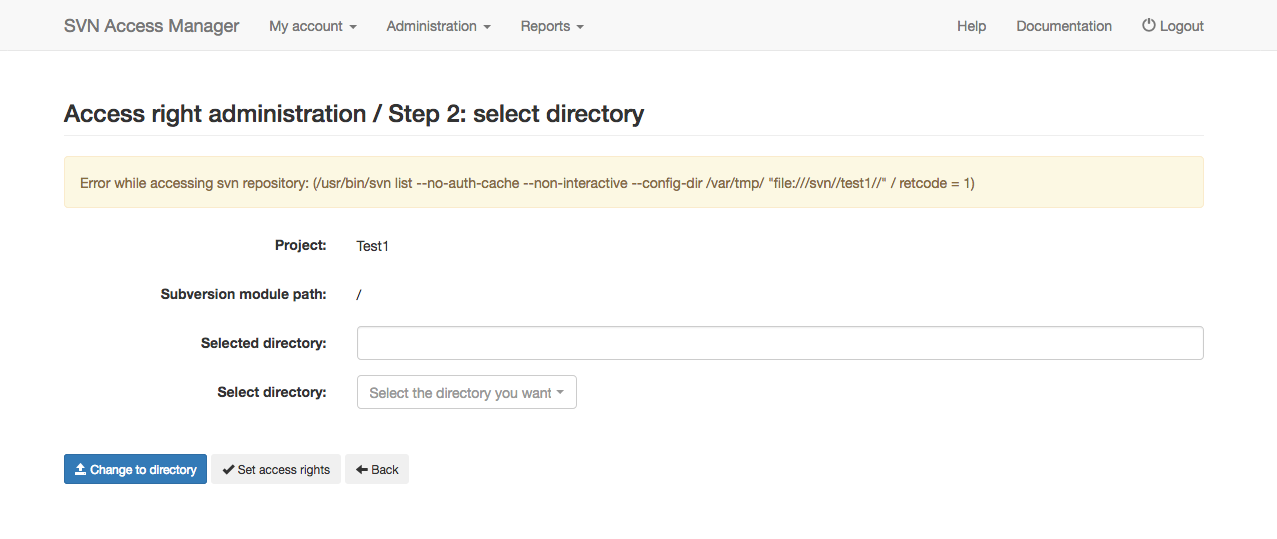
Then select the directory to grant rights on — if you enabled JavaScript during installation, clicking a directory selects it automatically; otherwise use the blue arrow to change directory, or type the path by hand.
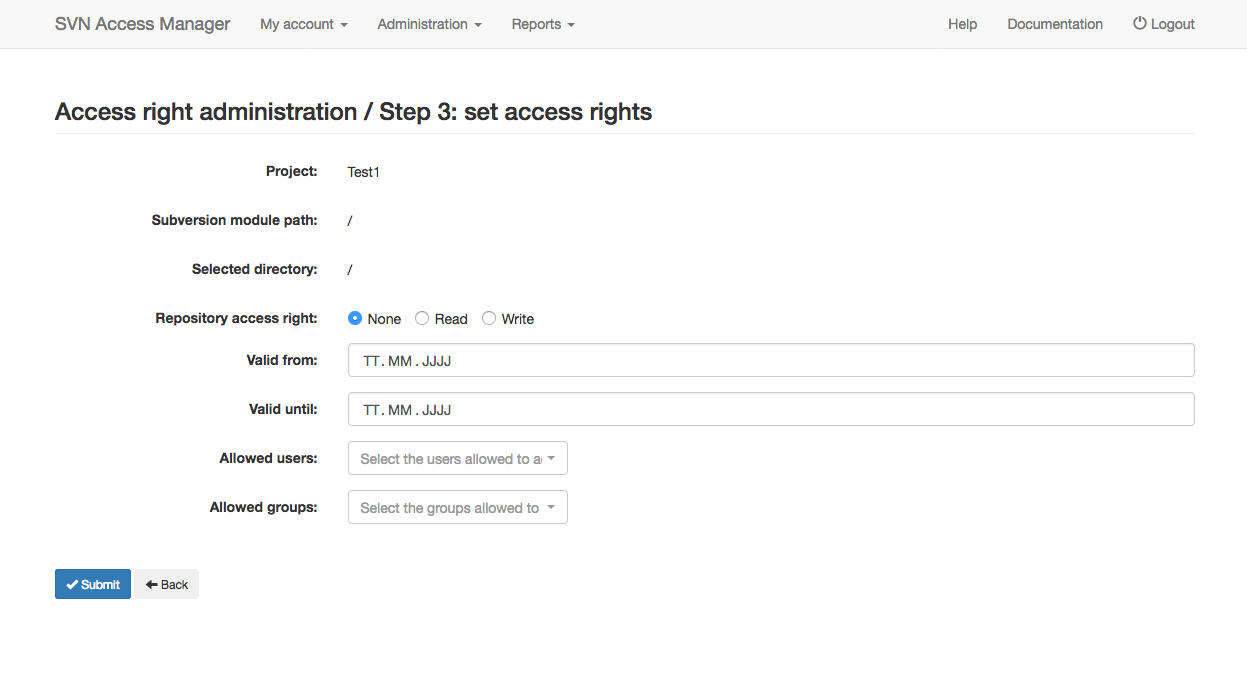
Choose None, Read or Write — write includes read. An access right can have limited validity via a valid from / valid until date range. Rights can be assigned to multiple users and groups at once; one database entry is created per selection.
Create access files
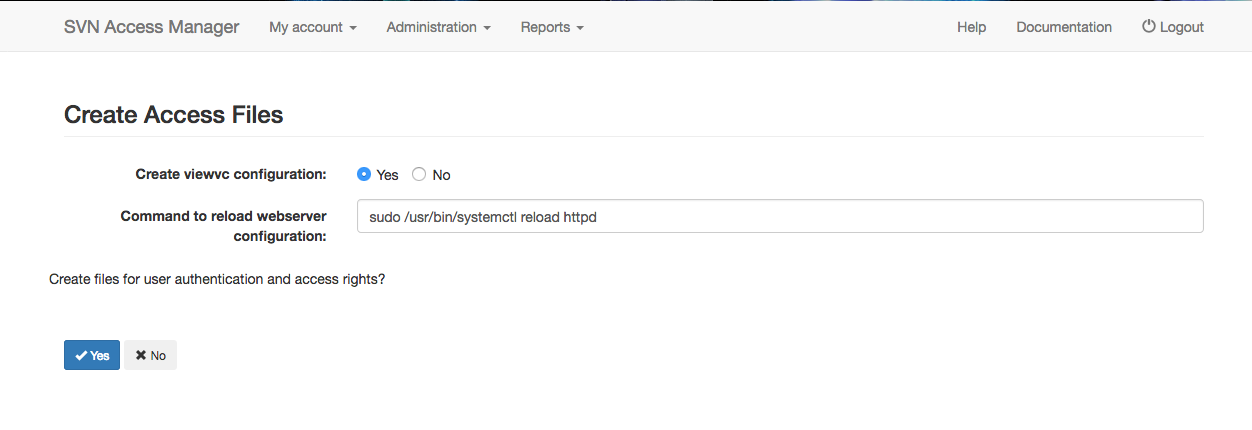
Create the access files you selected during installation — if you did not enable any, this menu item is hidden. You must confirm before the files are written.
Group administrators
Select, edit or delete a group administrator from the overview, or add a new one, following the same pattern as the group screens above. The rights you can grant follow the same none, read, edit or delete scale as global user rights.
Bulk add LDAP users
Shows every user in your LDAP directory who is not yet added to the SVN Access Manager database, all pre-selected. Every user you add gets the same repository access right, which you can set at the top of the table.
Message administration
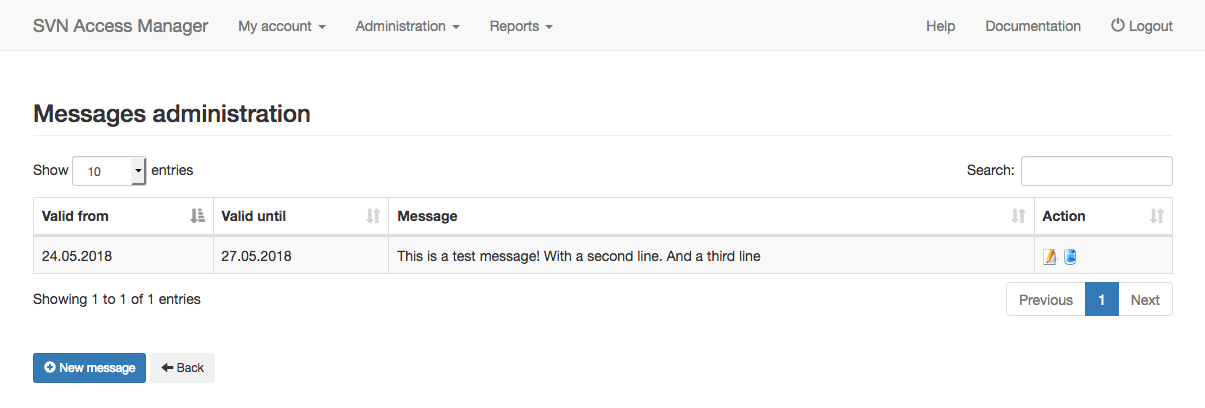
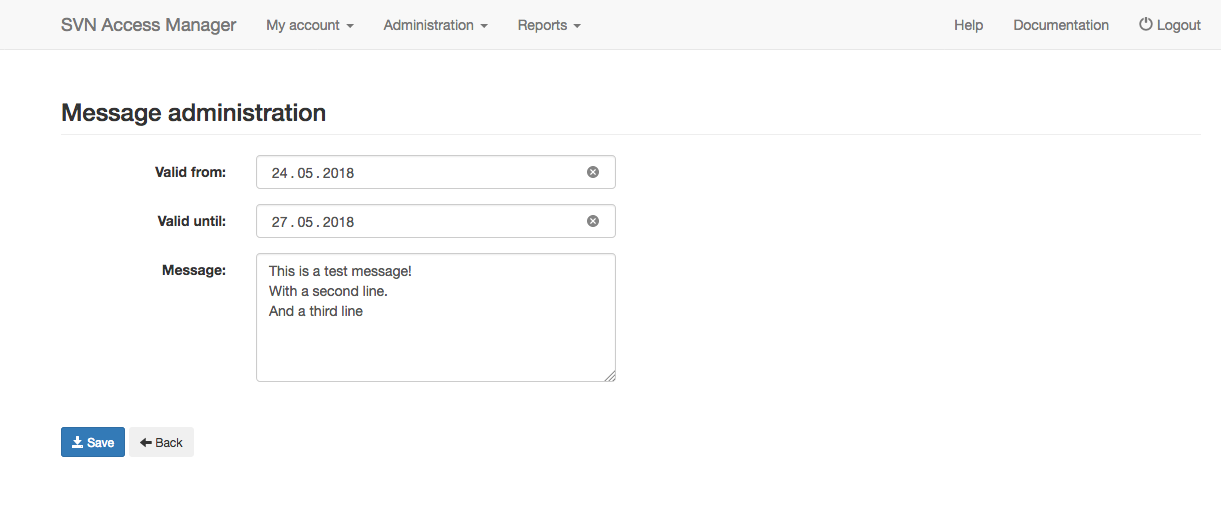
Show important messages on every user’s main screen. Each message needs a valid from and valid until date — it appears on the main screen during that range. Select an existing message to edit or delete it, or add a new one.